Opal
Opal – Markdown for Confluence shows Markdown in Confluence Cloud with callouts, task lists, highlighted code, maths and Mermaid diagrams. Confluence search finds the words inside, PDF and Word exports keep real headings and tables, and blocks can become native Confluence content at any time.
Transcript · 58 seconds
Meet Opal: Markdown for Confluence. Paste Markdown from any AI tool. The preview draws live, with callouts, tasks, code and diagrams. Mermaid diagrams come in five styles. On the page, diagrams stay sharp at any zoom. Opal follows light and dark mode. Confluence search finds the words inside your Markdown. Word and PDF exports keep real headings, code and diagrams. Coming from Render Markdown? Convert a page in one click. Same Markdown, now searchable. Opal. Free for up to ten users, on the Atlassian Marketplace.
Insert a Markdown block
- In the Confluence editor, type /Markdown or /Opal and choose Opal – Markdown
- Write Markdown, paste it from any AI chat as-is (an answer wrapped in a ```markdown fence is unwrapped for you), start from a template, or show a .md file attached to the page
- Select Save, or press Ctrl+S (Cmd+S on Mac); then publish the page as usual
To change a block later, select it in the page editor and choose the pencil icon.
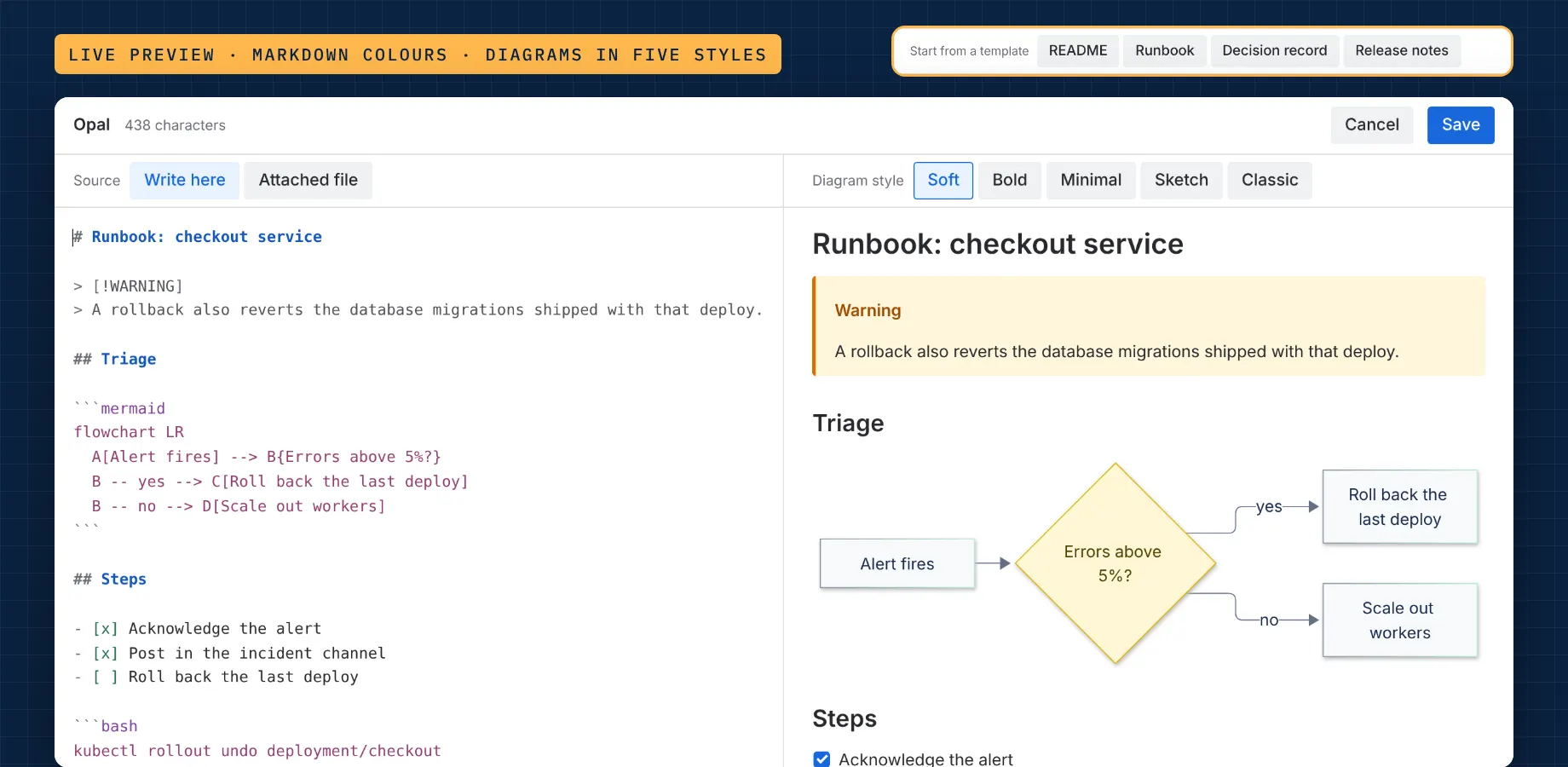
Write with a live preview
The editor shows your Markdown on one side and the result on the other, updating as you type. Headings, lists, links and code are coloured so the structure stands out. Enter continues lists and quotes, Tab indents, and Ctrl+F (Cmd+F) searches the text. The bar at the top shows the document's size.
While a block is empty, Start from a template offers four documents to adapt: README, Runbook, Decision record and Release notes. Between them they show callouts, tables, task lists and diagrams.
What Opal shows
Opal reads GitHub-flavoured Markdown: headings, emphasis, lists, links, quotes, tables, task lists and strikethrough, plus:
| You write | Opal shows |
|---|---|
| A code fence with a language, such as ```bash | Highlighted code with its language and a Copy button |
| > [!NOTE], [!TIP], [!IMPORTANT], [!WARNING] or [!CAUTION] | Coloured callouts, as on GitHub |
| - [ ] and - [x] | Task lists with open and ticked boxes |
| Text[^1] and [^1]: the note | Footnotes, listed at the end of the block |
| $…$ and $$…$$ | Maths, typeset with KaTeX; prices like $5 stay text |
| A code fence marked mermaid | A diagram (see Diagrams below) |
Full web addresses and email addresses become links. To keep everything inside Atlassian, images from other websites are shown as links rather than loaded, and HTML in the Markdown is shown as text rather than run.
Mermaid diagrams
A code fence marked mermaid becomes a diagram, drawn with the same engine and styles as Pearl, our Mermaid app. Every Mermaid diagram type works.
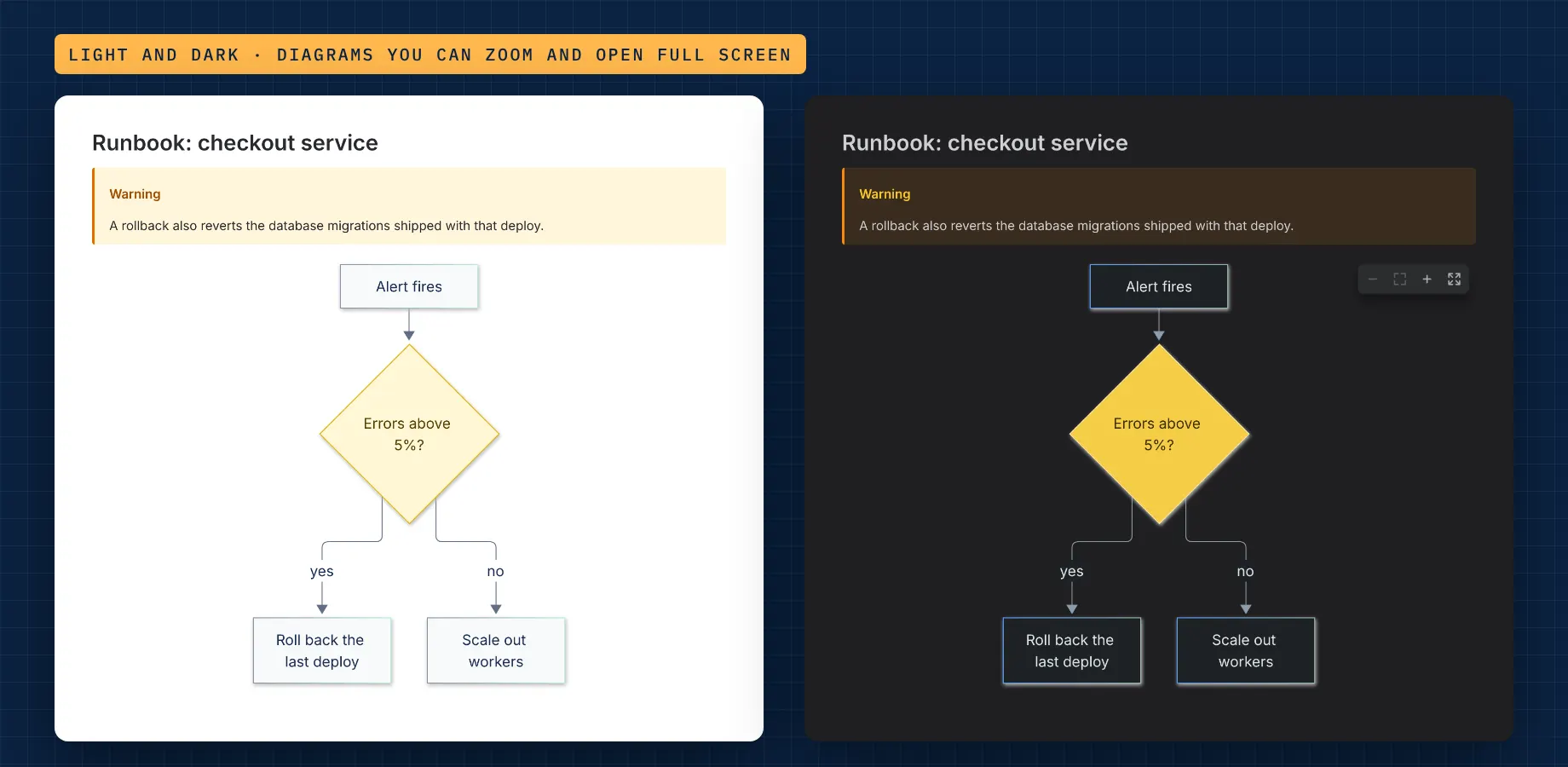
When a block has diagrams, Diagram style appears above the preview: Soft, Bold, Minimal, Sketch or Classic. The style applies to every diagram in the block and has a light and a dark version that follows Confluence's theme. Soft, Bold and Sketch colour flowchart nodes by what they are, read from their shape (the rules), unless the code sets its own colours.
On the page, hover a diagram for its toolbar: zoom out, fit, zoom in and full screen. Ctrl or Cmd + scroll and a trackpad pinch zoom too, while plain scrolling keeps scrolling the page. In full screen, scrolling zooms, dragging pans and Esc closes.
Found by Confluence search
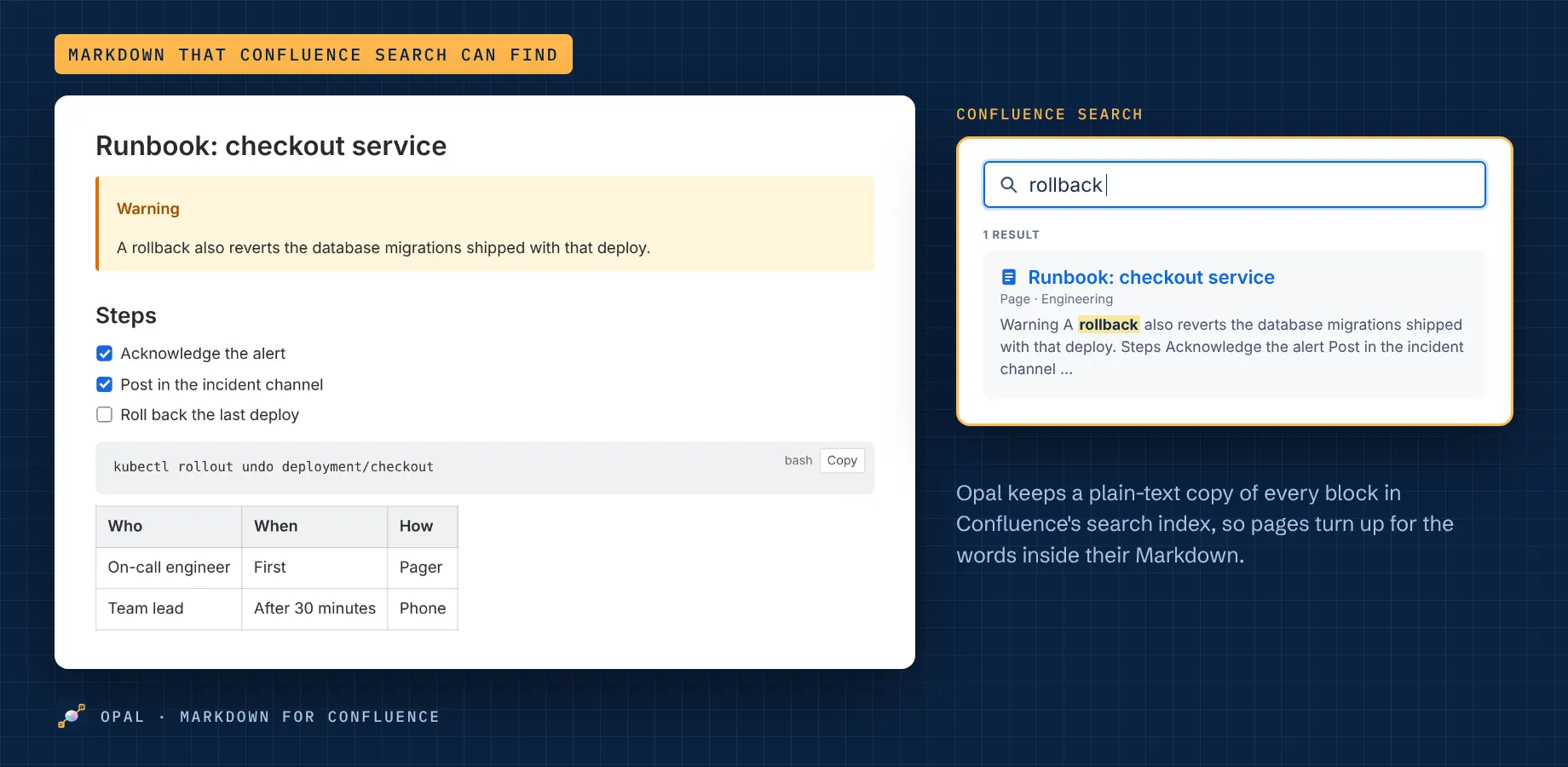
When you save a block, Opal also saves a plain-text copy of it for Confluence's search index. Pages then turn up for the words inside their Markdown, including the text of diagrams, and search results show readable excerpts instead of Markdown symbols. New text is usually searchable within a minute of publishing.
Blocks converted from another Markdown app are searchable the same way.
Show a Markdown file attached to the page
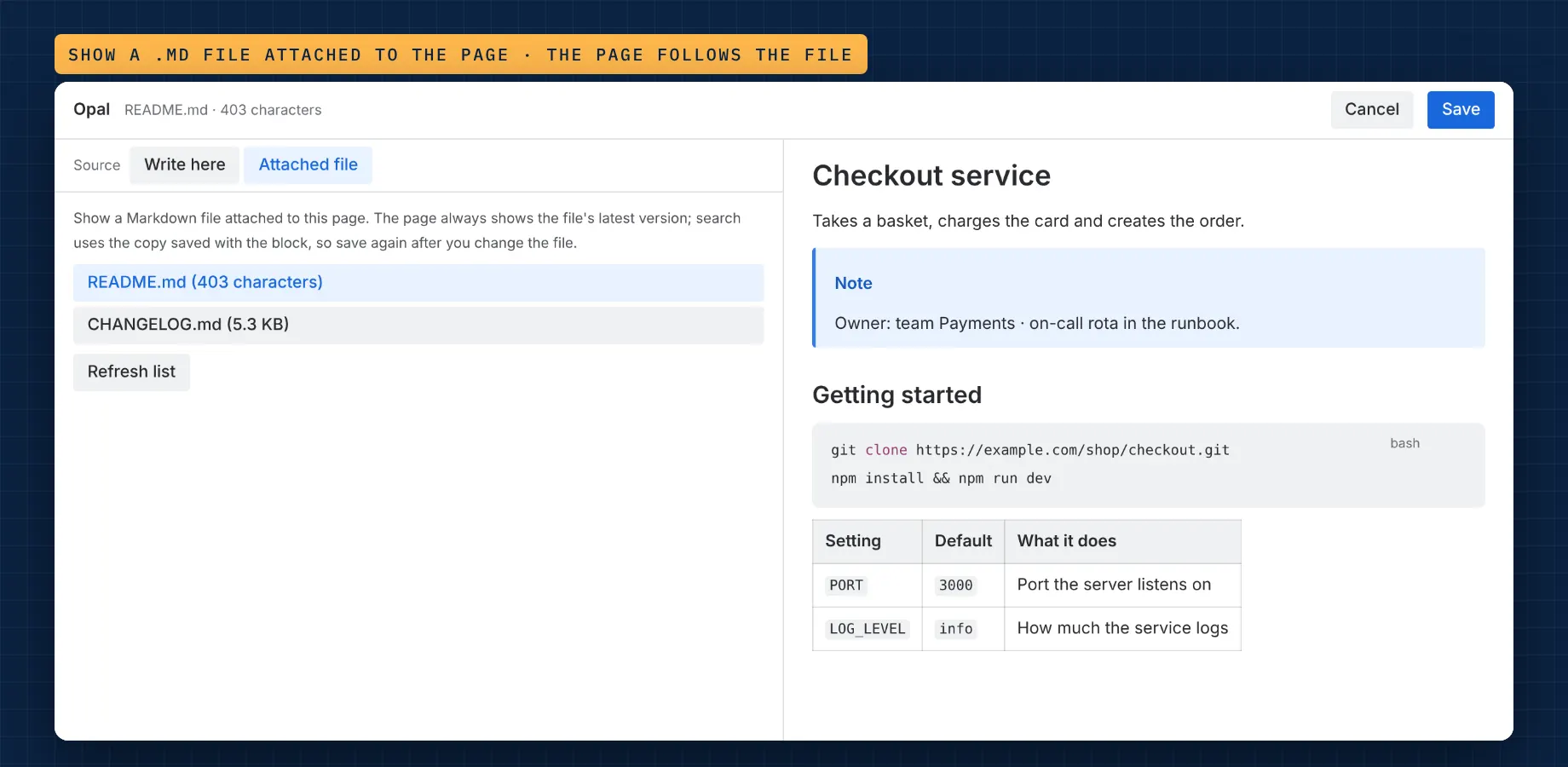
Teams that keep READMEs and runbooks as files can attach them to the page and show them in a block. In the editor, choose Source → Attached file, then pick one of the page's Markdown files (.md, .markdown, .mdown or .mkd).
- The page always shows the file's latest version: upload a new version and the block follows, without editing the page
- Search and turning blocks into Confluence content use the copy saved with the block, so open the block and select Save after the file changes
- PDF and Word exports read the file too; if the file can't be read, Opal uses the copy saved with the block
- A block only reads files attached to its own page
PDF, Word and page history
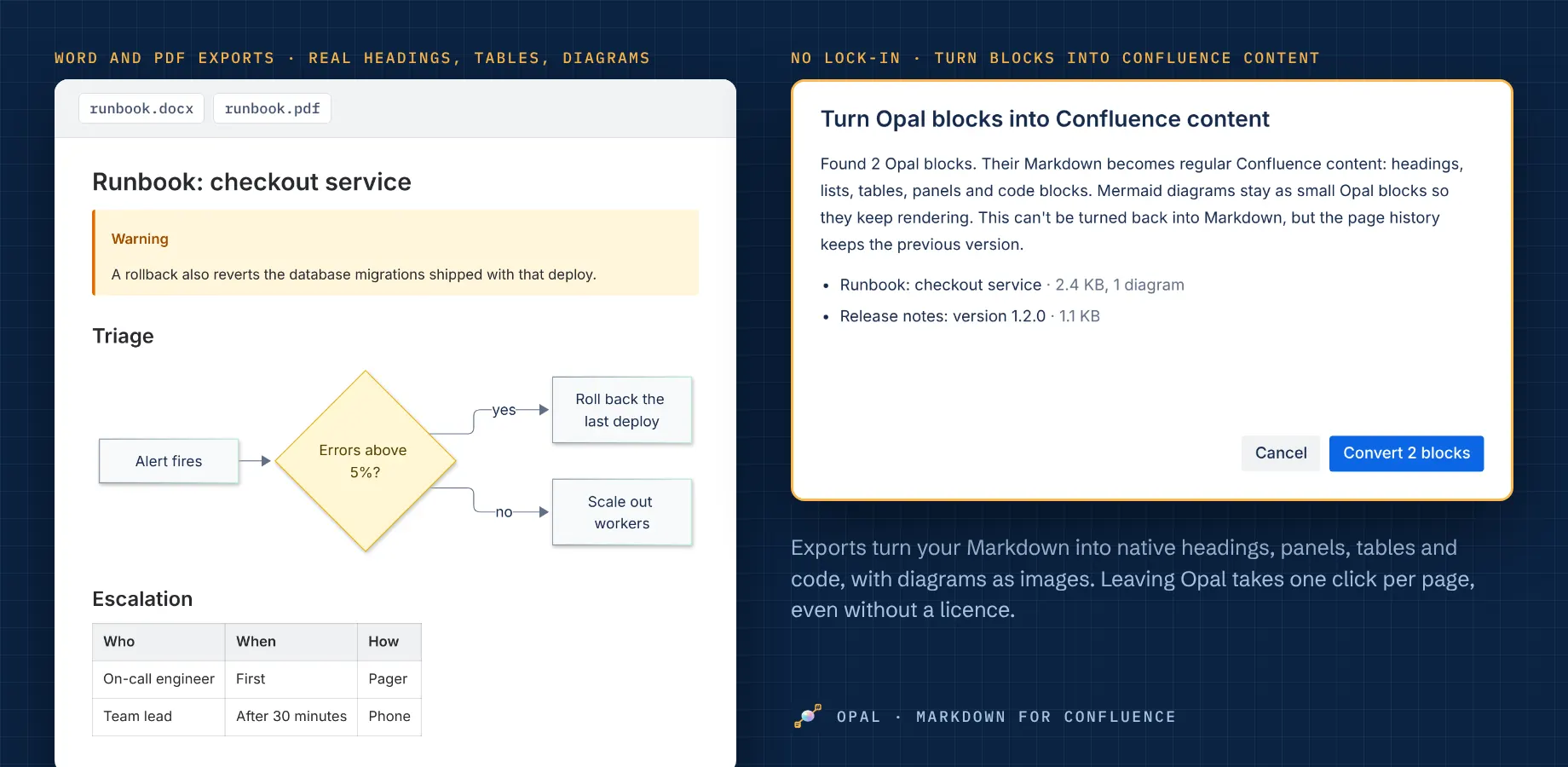
Exports turn the Markdown into native Confluence content, so a PDF or Word file has real, selectable text rather than a picture of the page.
| In the block | In PDF, Word and page history |
|---|---|
| Headings, lists, links and tables | Native headings, lists, links and tables |
| Code | Code blocks, highlighted by language |
| Callouts | Info, success, note, warning and error panels |
| Task lists | Confluence task lists |
| Mermaid diagrams | Images: vector graphics in PDF, high resolution in Word |
| Footnotes and maths | Footnotes after a line at the end; maths as LaTeX code |
Diagram images are made when a block is saved in Opal's editor. A block that has never been saved there, such as one just converted from another app, exports its diagrams as code until you open it and select Save.
Moving from Render Markdown
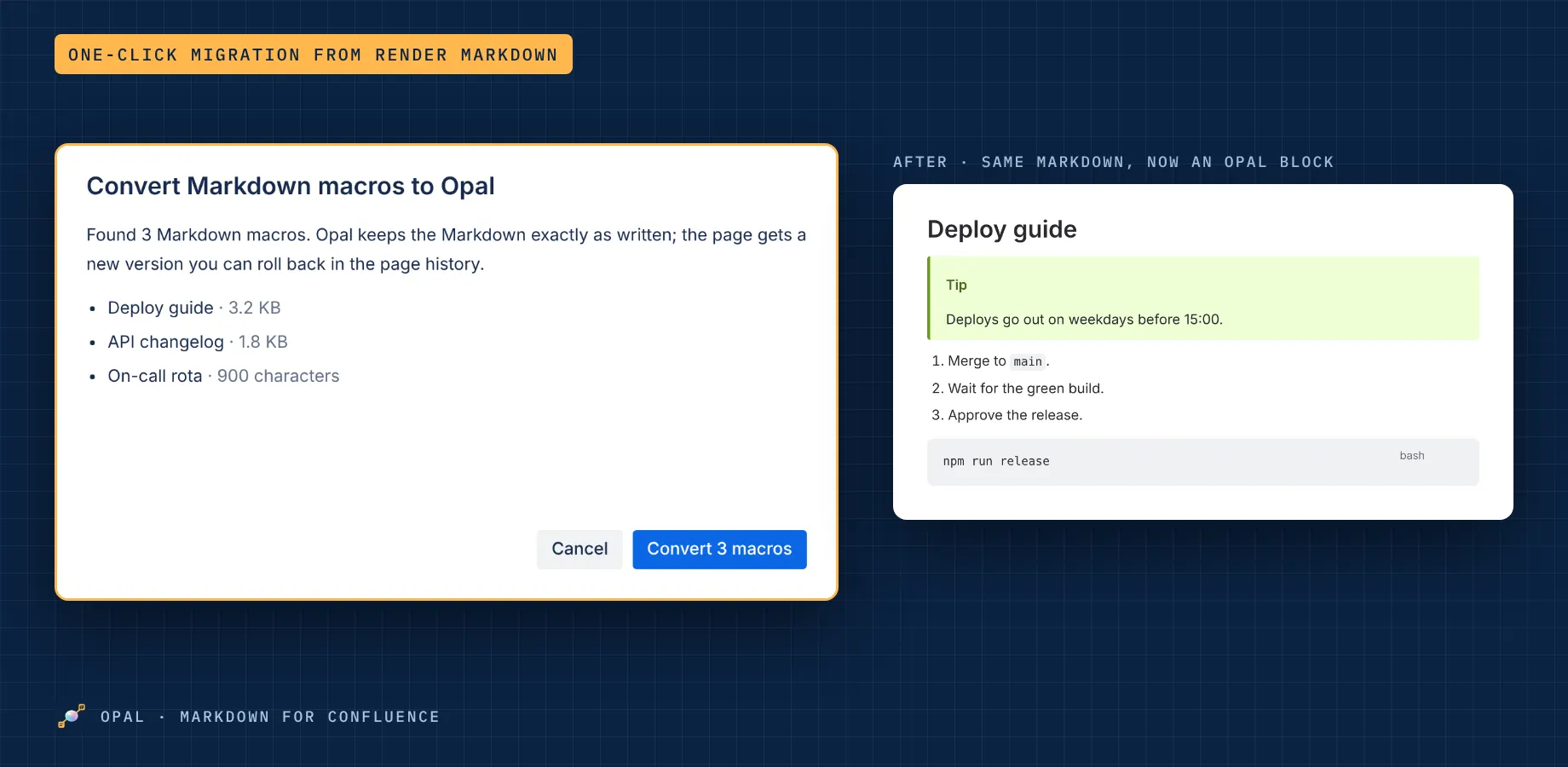
Render Markdown runs on Atlassian Connect, which reaches end of support on 31 January 2027. Opal converts its macros in place and keeps the Markdown exactly as written. On the page, open ••• → Apps → Convert Markdown macros to Opal.
- Opal lists the Markdown macros it can convert, including ones inside panels, tables and layouts
- Select Convert; Opal saves the page as you, with the version note "Opal: converted … Markdown macros", and the page history keeps the old version
- Macros with settings Opal doesn't have, or without Markdown text, are listed and left as they are
- You need permission to edit the page, and an active licence
- If someone changes the page while the window is open, Opal changes nothing and asks you to open the action again
Turn blocks into Confluence content
You can leave Opal at any time, with or without a licence. On the page, open ••• → Apps → Turn Opal blocks into Confluence content: each block becomes the same native content its exports get.
- Mermaid diagrams at the top level of a block stay as small Opal blocks in the same style, so they keep rendering; diagrams elsewhere become code blocks
- Blocks inside tables, panels and expands are listed and left alone, because Confluence allows only certain content there
- This can't be turned back into Markdown; the page history keeps the previous version, with the version note "Opal: turned … Opal blocks into Confluence content"
- You need permission to edit the page
Without an active licence
Blocks stay visible and keep exporting, so no page ever breaks, and turning them into Confluence content always works. Creating or changing blocks and converting Markdown macros need an active Opal subscription; they return as soon as it is active again.
Data and privacy
Opal runs on Atlassian's Forge platform and sends nothing outside Atlassian. Your Markdown, and the plain-text copy used for search, is saved by Confluence in your page, and attached files stay attachments of your page. Export images of each saved diagram, with the page id and save dates, are kept in Forge storage for your site; these are the data in scope for data residency. Opal reads files only from the page a block is on, and writes to a page only when someone runs one of its page actions, as that person. Details: privacy policy and security policy.
Known limits
- Public links to Confluence pages don't show Opal blocks: Confluence hides every app's macros there. Guests and anonymous visitors in public spaces do see them
- The editor saves blocks of up to 500,000 characters; larger documents converted from other apps, up to 1,000,000 characters, still show and export
- Confluence's search index takes about 250,000 characters of a block; in longer blocks Opal keeps the first 240,000 characters and each later word once, so the words are still found
- Exports include images for up to 20 diagrams per block; diagrams beyond that, or in places such as tables, export as code
- The page actions work on pages; blog posts aren't supported yet
Questions or problems: support, answered 24/7.