Pearl
Pearl – Mermaid Diagrams for Confluence draws Mermaid diagrams as sharp vector graphics that fill the page, with a live editor, styles that colour by meaning, AI help, one-click conversion of code blocks, zoom, full screen and blur-free exports.
Transcript · 55 seconds
Meet Pearl: Mermaid diagrams for Confluence. Paste a diagram from any AI tool. The code fences vanish, and the preview draws live. Pick from five styles that colour each node by its meaning, in light and dark. On the page, diagrams stay sharp at any zoom. Open full screen to explore the detail. Already have Mermaid code blocks? Convert them to diagrams in one click. Made a typo? Fix it with AI. Nothing leaves Atlassian. Pearl. Free for up to ten users, on the Atlassian Marketplace.
Insert a diagram
- In the Confluence editor, type /Mermaid or /Pearl and choose Pearl – Mermaid diagram
- Write Mermaid code, paste it from any AI chat as-is (Markdown code fences are removed for you), start from a template, or describe the diagram and let AI draw it
- Select Save, or press Ctrl+Enter (Cmd+Enter on Mac); then publish the page as usual
To change a diagram later, select it in the page editor and choose the pencil icon.
Edit with a live preview
The editor shows your code on one side and the diagram on the other, updating as you type. The code is coloured so keywords, labels and arrows stand out. Mistakes show a readable error in place of the preview. Tab indents your code. Saving also creates the images Pearl uses for exports.
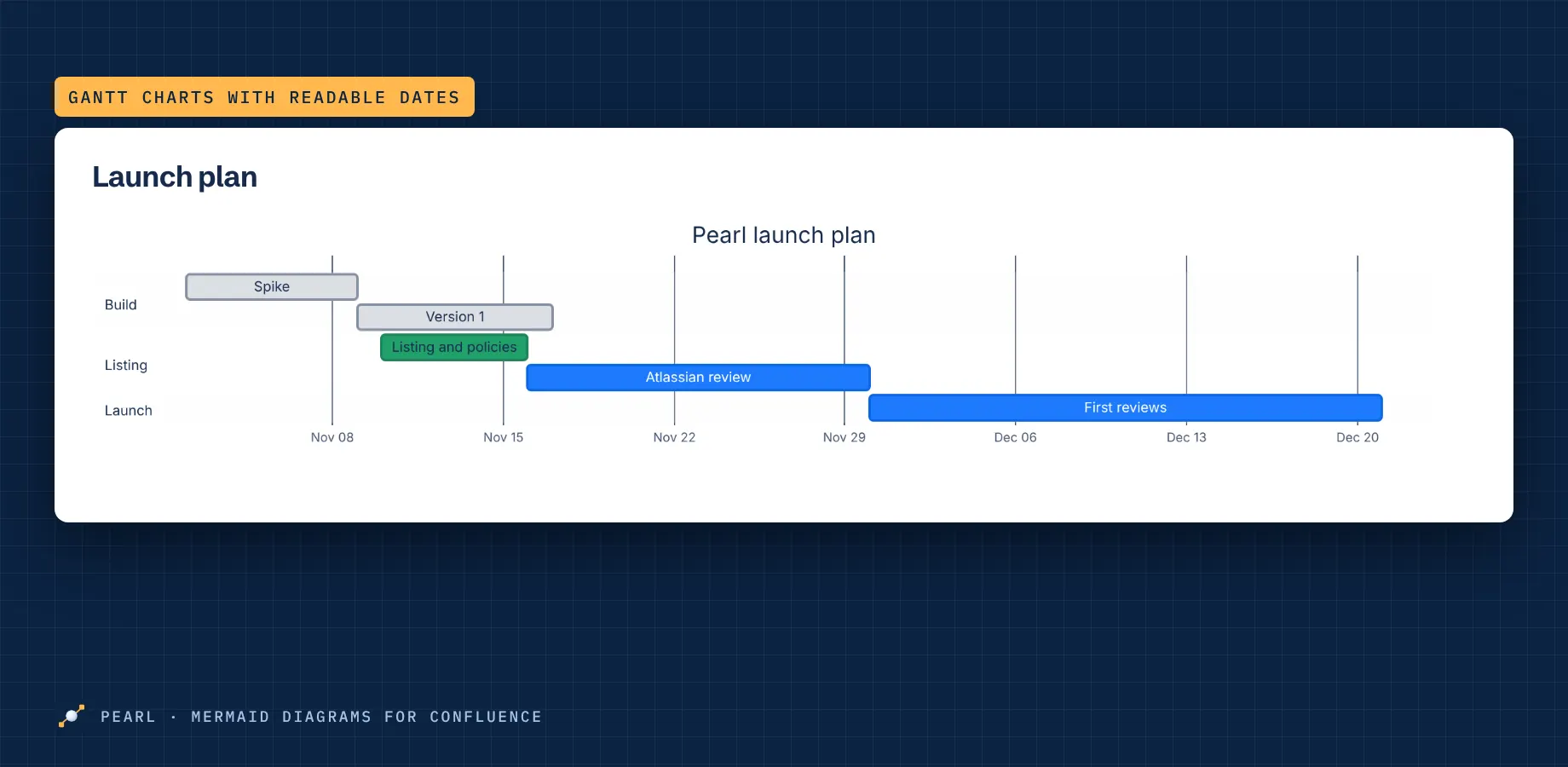
Templates… above the code offers 14 starting points: system architecture, a process with decisions, an API call sequence, a class diagram, a state machine, a database (ER), a project plan (Gantt), a mind map, a timeline, a user journey, Git branching, a pie chart, a priority matrix and a kanban board. A template replaces the code; Undo, next to Cancel, brings yours back.
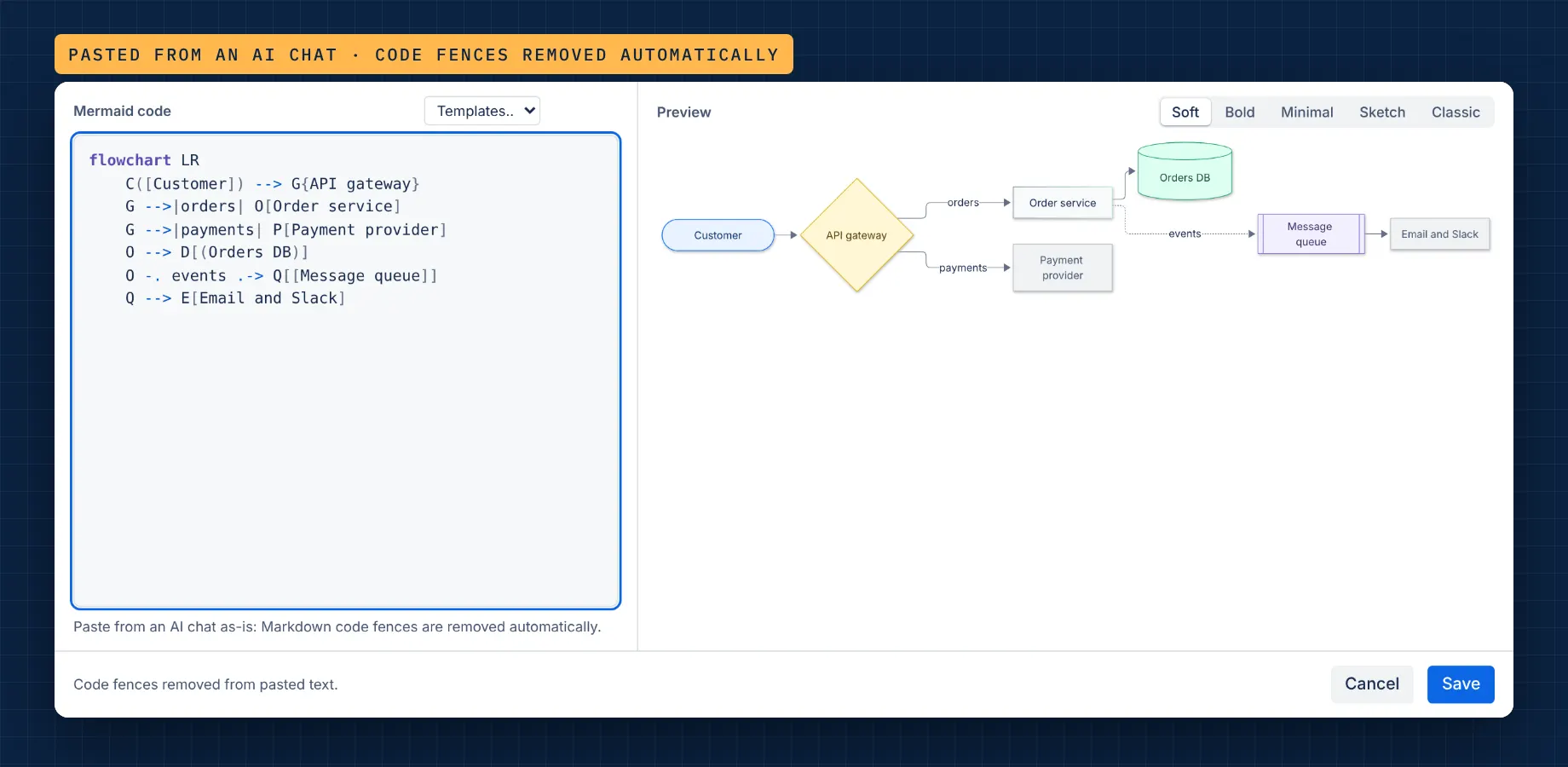
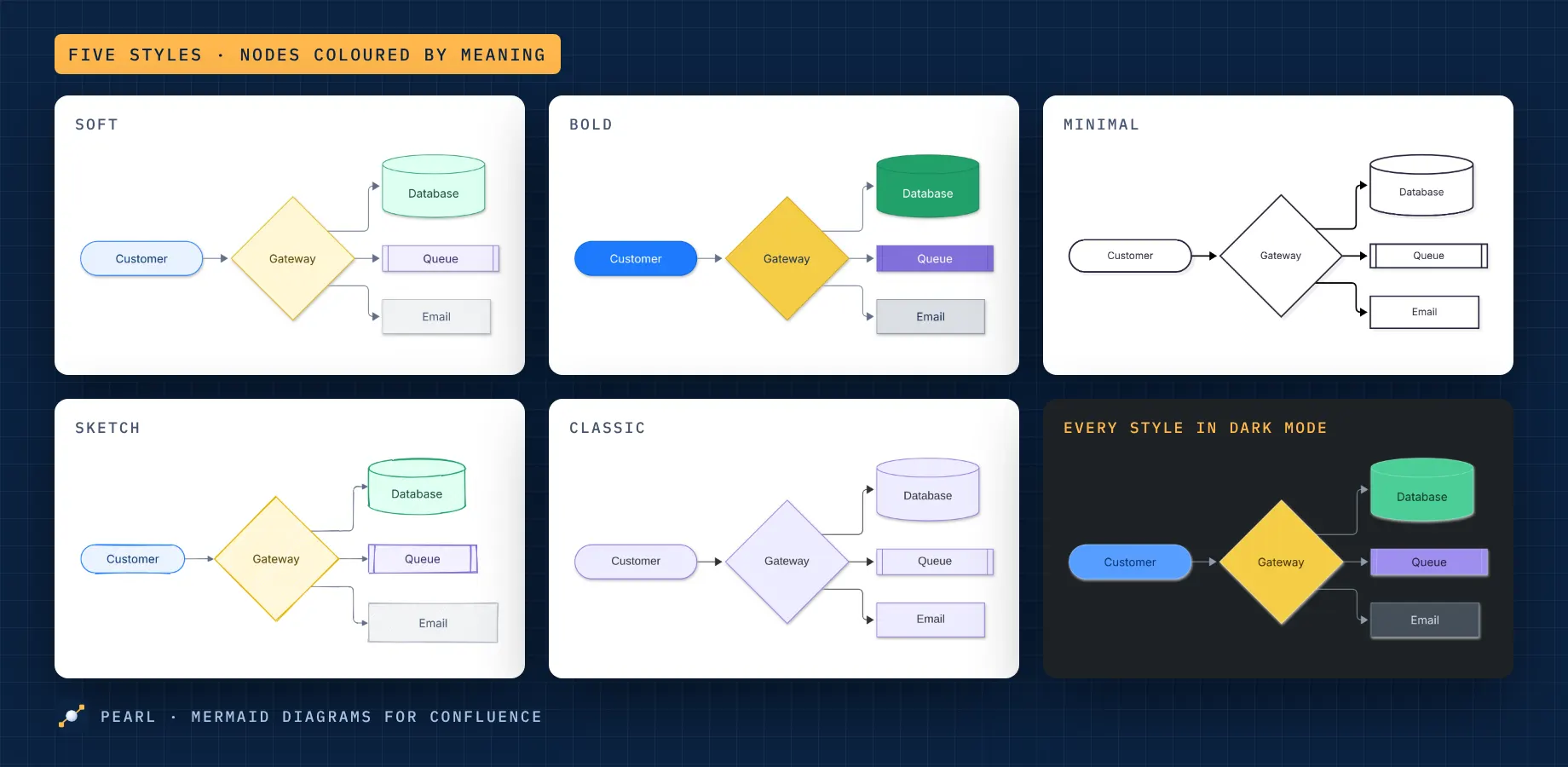
Diagram styles
Choose a style above the preview. Each diagram keeps its own style, and every style has a light and a dark version that follows Confluence's theme. New diagrams start in Soft; diagrams made before styles existed keep the Classic look until you pick another.
| Style | Looks |
|---|---|
| Soft | Gentle colours by role |
| Bold | Strong colours by role |
| Minimal | Clean black and white |
| Sketch | Hand-drawn, gentle colours |
| Classic | Mermaid's standard look |
Soft, Bold and Sketch colour flowchart nodes by what they are, read from the shape you draw them with:
| Shape in the code | Coloured as |
|---|---|
| ([Label]) or ((Label)) | People, start and end |
| [(Label)] | Databases and data stores |
| [[Label]] | Queues and subprocesses |
| {Label} | Decisions |
| [Label] naming an outside service (a provider, email, Slack, Stripe…) | External services |
| [Label] | Steps |
Your own colours win: if the code sets its own classDef, class, style or ::: colours, or its own theme, Pearl leaves them as they are. PDF, Word and downloaded images always use the light version of the style.
Create and fix diagrams with AI
Select AI above the code and describe what you want in plain words. Create diagram draws a new diagram from your description; Tidy up this diagram makes the current one clearer without changing what it says, and follows an extra instruction if you give one. When a diagram doesn't render, Fix with AI appears next to the error and repairs it with as few changes as possible.
- Every answer is drawn in the preview before it replaces your code; Undo brings your code back, and nothing reaches the page until you select Save
- Requests go to AI models hosted by Atlassian, so nothing leaves Atlassian; Pearl doesn't store or log your descriptions, diagrams or the answers
- Each site has 100 AI requests a month, shared by everyone on it; the count starts again on the 1st
- AI needs an active licence, and a Confluence admin can switch it off for the site
Convert Mermaid code blocks
Pages that already hold Mermaid code in code blocks, for example from Atlassian's Mermaid diagrams viewer or pasted Markdown, become Pearl diagrams in one step. On the page, open ••• → Apps → Convert Mermaid code blocks.
- Pearl lists the code blocks tagged as Mermaid, and untagged ones whose code is clearly Mermaid, each with a preview
- Choose a style for the new diagrams and select Convert; the diagrams stay editable in Pearl's editor
- Pearl saves the page as you, with the version note "Pearl: converted … Mermaid code blocks to diagrams"; the page history keeps the old version
- You need permission to edit the page, and an active licence
- Blocks inside a panel, a list or anywhere else Confluence allows no macro are flagged and left as they are
- If someone changes the page while the window is open, Pearl changes nothing and asks you to try again
Zoom, full screen and downloads
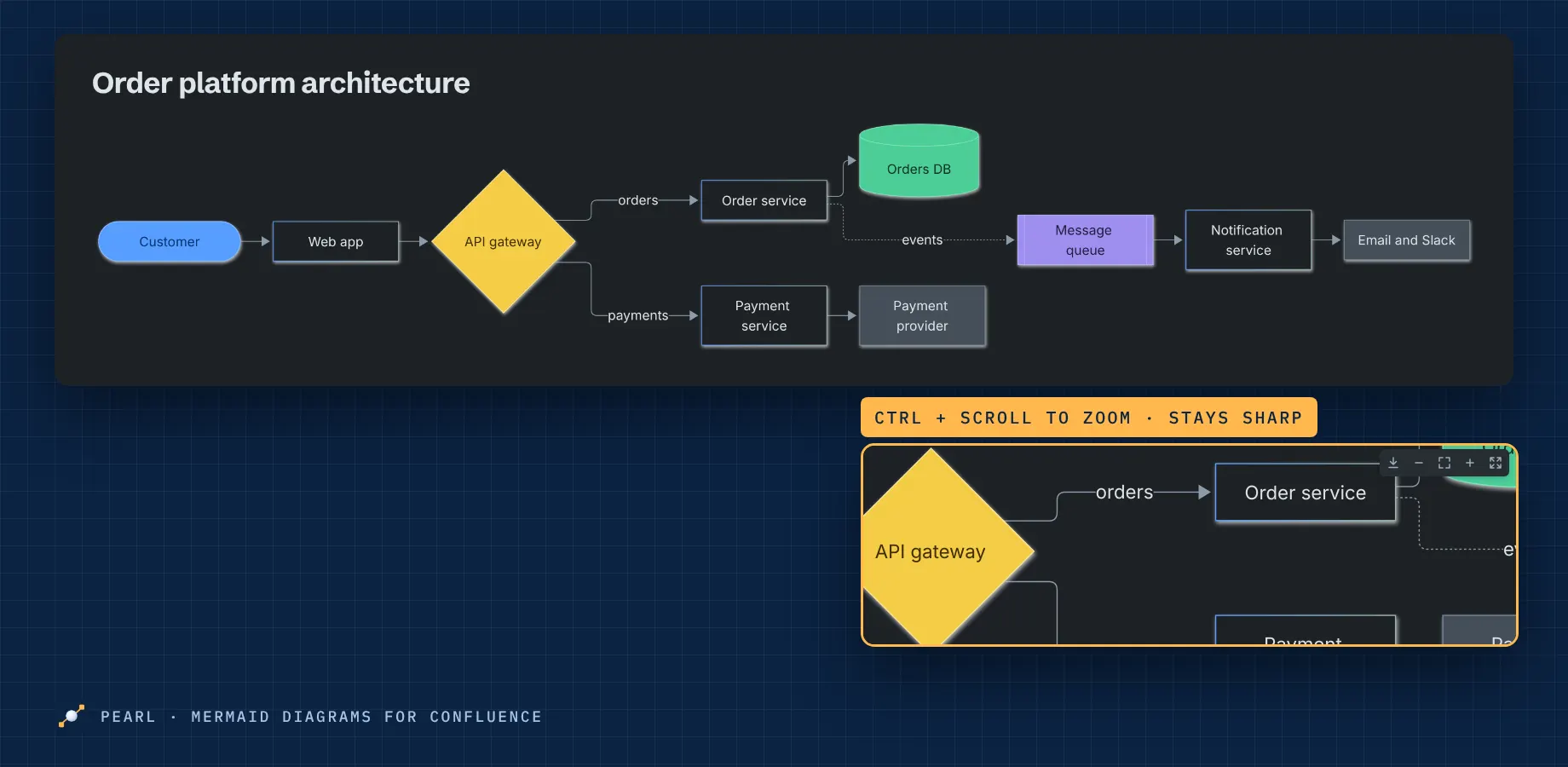
- Diagrams fill the page width and follow Confluence's light or dark theme
- Zoom with Ctrl or Cmd + scroll, a trackpad pinch, or the toolbar that appears on hover; double-click zooms in, Shift + double-click zooms out
- Drag to pan once zoomed in; the keys + and − zoom, 0 fits, and the arrow keys pan
- Full screen opens the diagram over the page, where plain scrolling zooms; press Esc to close
- The toolbar's download button saves the diagram as a PNG or SVG file, or copies it as an image, in the light version of its style
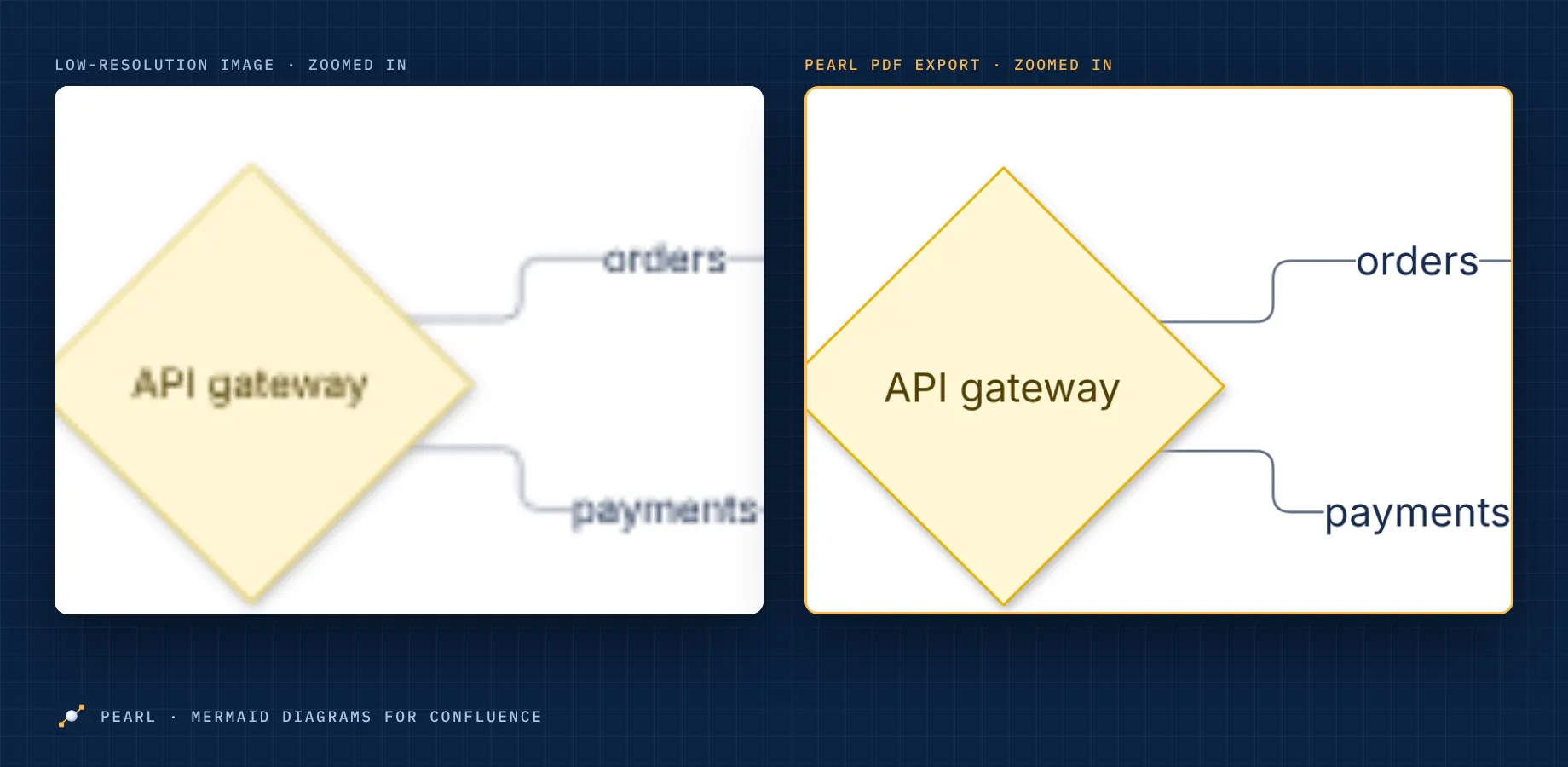
PDF, Word and page history
| Export | What you get |
|---|---|
| The diagram as vector graphics: sharp when printed or zoomed | |
| Word | A high-resolution image of the diagram |
| Page history | The same image, sized to the page |
Exports use the images made when the diagram was last saved in Pearl's editor. If a diagram has never been saved there, PDF draws it live and Word shows its Mermaid code; open it in the editor and save once to fix that.
Supported diagrams
Every Mermaid diagram type: flowchart, sequence, class, state, entity relationship, Gantt, pie, mindmap, user journey, Git graph, timeline, quadrant, XY chart, requirement, C4, Sankey, block, packet, kanban, architecture and radar.
Without an active licence
Diagrams stay visible and keep exporting, so no page ever breaks. Creating or changing diagrams, the AI features and converting code blocks need an active Pearl subscription; they return as soon as it is active again.
Settings for Confluence admins
In Confluence settings, Pearl – Mermaid diagrams has one switch: allow Pearl's AI features on this site. It also shows how many of this month's 100 AI requests have been used. With AI switched off, the AI button and Fix with AI no longer appear in the editor.
This version of Pearl asks a site admin to approve its upgrade, because it adds two permissions: reading and writing pages, used only when someone converts code blocks and only as that person, and AI models hosted by Atlassian.
Data and privacy
Pearl runs on Atlassian's Forge platform and sends nothing outside Atlassian. Diagram code is saved by Confluence in your page. Export images of each saved diagram, with the page id and save dates, are kept in Forge storage for your site, with the AI on/off setting and this month's count of AI requests; these are the data in scope for data residency. AI requests go to models hosted by Atlassian, and Pearl doesn't store or log what is sent or returned. Pearl writes to a page only when someone converts its code blocks, as that person. Details: privacy policy and security policy.
Known limits
- Public links to Confluence pages don't show diagrams: Confluence hides every app's macros there. Guests and anonymous visitors in public spaces do see them
- Diagram code can be up to 50,000 characters
- Very large diagrams are exported at a lower image resolution to stay within storage limits
- AI descriptions can be up to 2,000 characters, and the AI features work on diagrams up to 20,000 characters
- Converting code blocks works on pages; blog posts aren't supported yet
Questions or problems: support, answered 24/7.